Step 3: Hooking up the touchscreen control scripts
The d-pad is designed to work with Gamefroot characters like the classic platform player and Newton character. If the d-pad controls don't work, then we'll need to add the right script blocks to the game object you want to control. (If it works fine you can skip this step.)
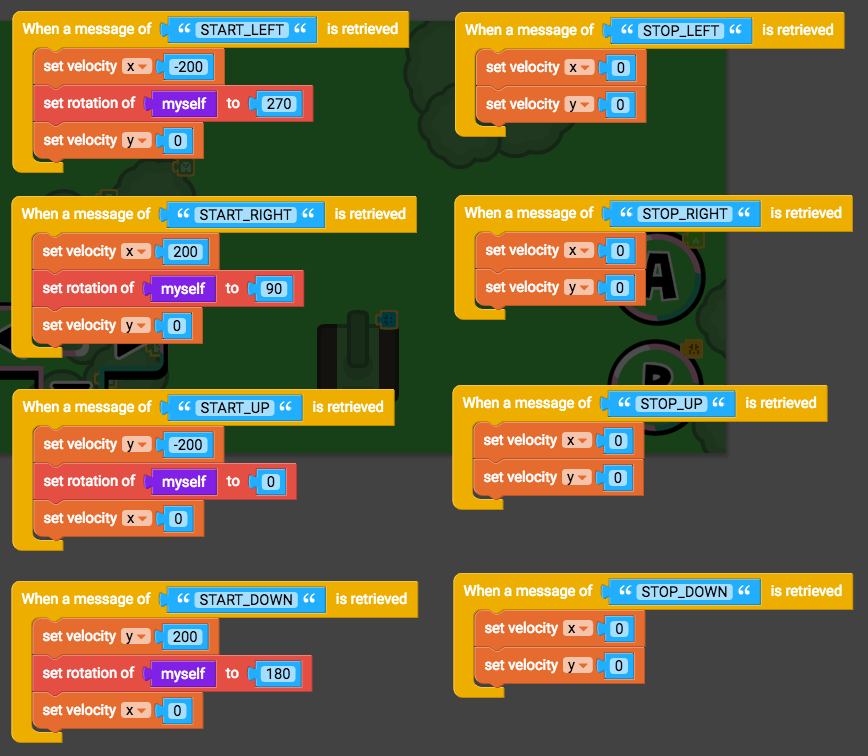
When the d-pad buttons are pressed and released, messages are sent to the target object to control it. For example, when the left button is pressed, the d-pad script sends the message "START_LEFT" to a character, and then the character's script makes it move left when it receives that message. If the target game object is going to do anything with these messages, we need to make sure the object has the script blocks necessary to receive a message.
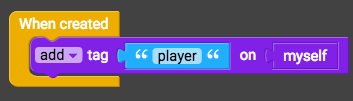
Edit the script on the game object you wish to be controlled by the d-pad. First, we need to make sure the game object will be recognized as the player. Grab the "add tag tag name on myself" block (from Sensing) and drag into a "When created" block. Change the tag name to "player".
Next we'll get the message receivers working. The events that you're using to control the object will need to be swapped out with "When a message of message is retrieved" blocks (from Events).
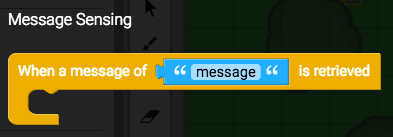
Here are the messages you can retrieve from the d-pad:
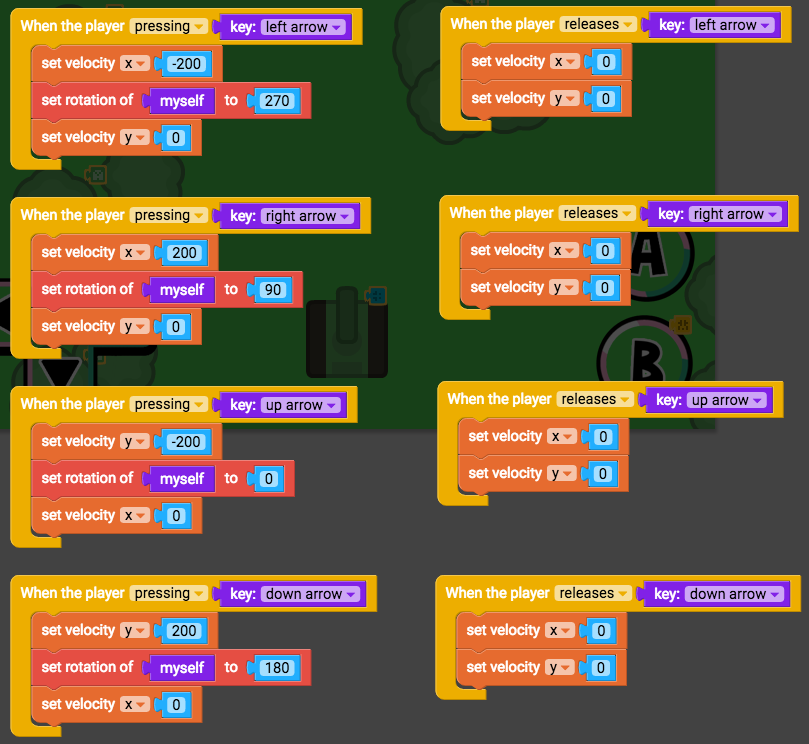
START_DOWN START_LEFT START_RIGHT START_UP (this one is sent from the d-pad's up button and the A button) STOP_DOWN STOP_LEFT STOP_RIGHT STOP_UP (this one is sent from the d-pad's up button and the A button) START_ACTION (this one is from the B button) STOP_ACTION (this one is from the B button) Here's an example of a script BEFORE the proper blocks have been added:
And here's that script AFTER the message blocks have added to make the d-pad work: